Logto คือทางเลือกแทน Auth0 ที่ออกแบบมาสำหรับแอปและผลิตภัณฑ์ SaaS ยุคใหม่ โดยมีทั้งบริการ Cloud และ Open-source เพื่อช่วยให้คุณเปิดตัวระบบการจัดการเอกลักษณ์และการเข้าถึง (IAM) ได้อย่างรวดเร็ว สนุกกับการยืนยันตัวตน (การยืนยันตัวตน), การอนุญาต (การอนุญาต), และการจัดการหลายผู้เช่า ครบจบในที่เดียว
เราแนะนำให้เริ่มต้นด้วย tenant สำหรับการพัฒนาแบบฟรีบน Logto Cloud เพื่อให้คุณสามารถสำรวจฟีเจอร์ทั้งหมดได้อย่างง่ายดาย
ในบทความนี้ เราจะพาคุณไปทีละขั้นตอนเพื่อสร้างประสบการณ์ลงชื่อเข้าใช้ Google Workspace enterprise SSO (การยืนยันตัวตนของผู้ใช้) อย่างรวดเร็วด้วย iOS (Swift) และ Logto
ข้อกำหนดเบื้องต้น
- มี Logto instance ที่พร้อมใช้งาน ดู หน้าแนะนำ เพื่อเริ่มต้นใช้งาน
- มีความรู้พื้นฐานเกี่ยวกับ iOS (Swift)
- มีบัญชี Google Workspace enterprise SSO ที่ใช้งานได้
สร้างแอปพลิเคชันใน Logto
Logto สร้างขึ้นบนพื้นฐานของการยืนยันตัวตน OpenID Connect (OIDC) และการอนุญาต OAuth 2.0 โดยรองรับการจัดการข้อมูลระบุตัวตนแบบรวมศูนย์ข้ามหลายแอปพลิเคชัน ซึ่งมักเรียกว่า การลงชื่อเข้าใช้ครั้งเดียว (Single Sign-On; SSO)
ในการสร้างแอปพลิเคชัน Native app ของคุณ เพียงทำตามขั้นตอนเหล่านี้:
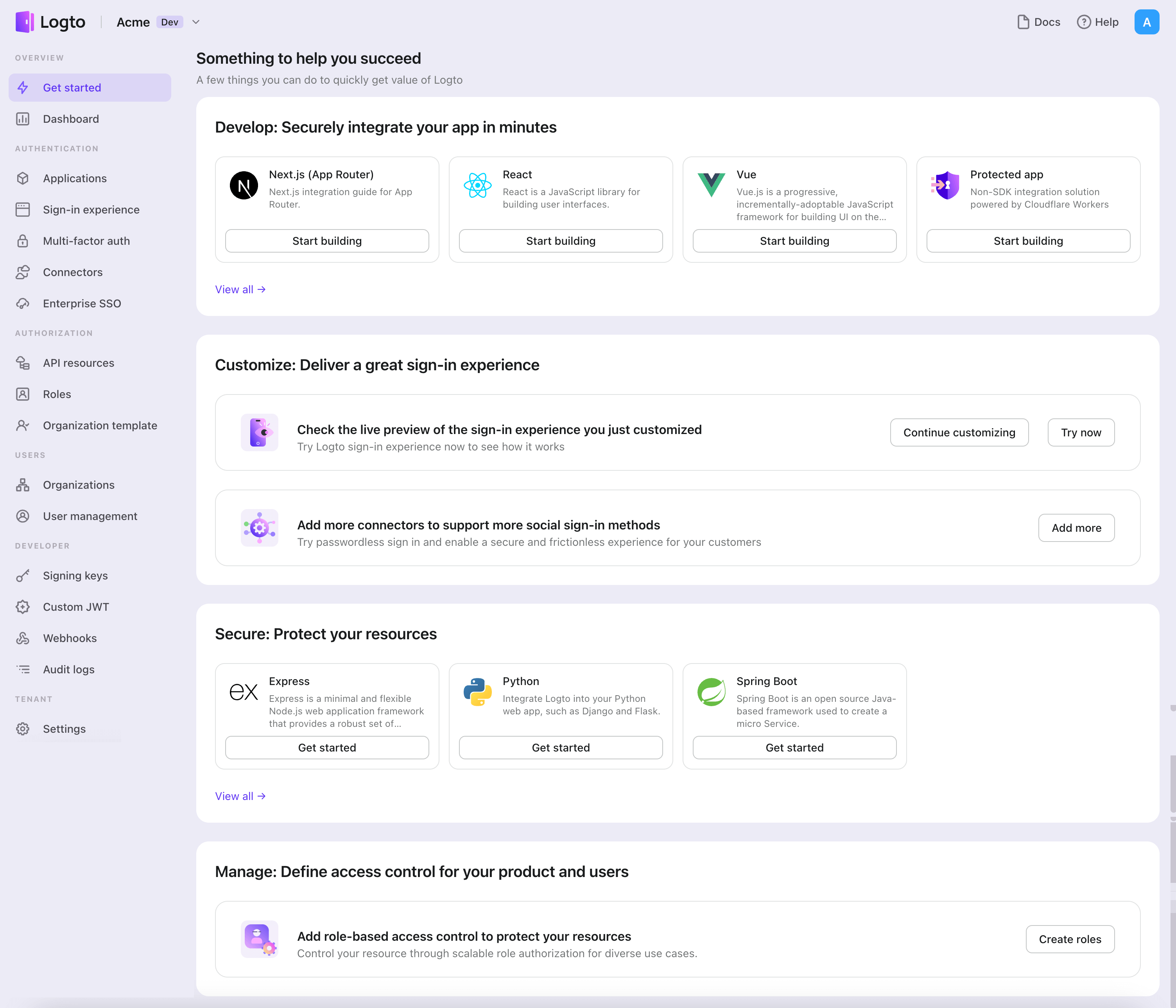
- เปิด Logto Console ในส่วน "เริ่มต้นใช้งาน" ให้คลิกที่ลิงก์ "ดูทั้งหมด" เพื่อเปิดรายการเฟรมเวิร์กของแอปพลิเคชัน หรือคุณสามารถไปที่ Logto Console > Applications แล้วคลิกปุ่ม "สร้างแอปพลิเคชัน"
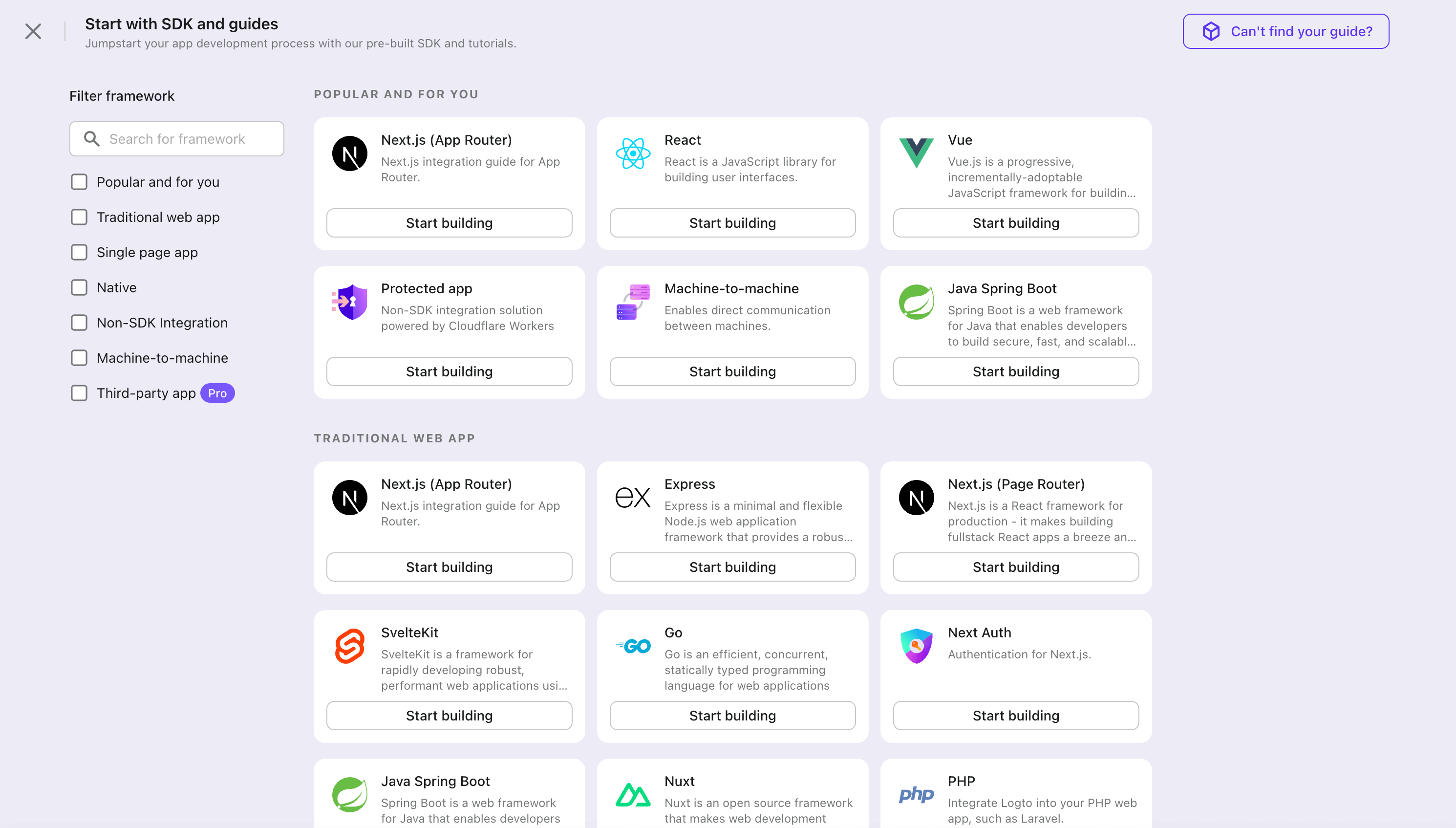
- ในหน้าต่างที่เปิดขึ้น ให้คลิกที่ส่วน "Native app" หรือกรองเฟรมเวิร์ก "Native app" ทั้งหมดที่มีโดยใช้ช่องกรองด่วนทางซ้ายมือ จากนั้นคลิกที่การ์ดเฟรมเวิร์ก "iOS (Swift)" เพื่อเริ่มสร้างแอปพลิเคชันของคุณ
- กรอกชื่อแอปพลิเคชัน เช่น "Bookstore" แล้วคลิก "สร้างแอปพลิเคชัน"
🎉 เยี่ยมมาก! คุณเพิ่งสร้างแอปพลิเคชันแรกของคุณใน Logto คุณจะเห็นหน้าข้อความแสดงความยินดีซึ่งมีคู่มือการเชื่อมต่ออย่างละเอียด ให้ทำตามคู่มือเพื่อดูประสบการณ์ที่จะเกิดขึ้นในแอปพลิเคชันของคุณ
ผสานรวม iOS (Swift) กับ Logto
เพิ่ม Logto SDK เป็น dependency
The minimum supported iOS version of Logto Swift SDK is iOS 13.
Logto Swift SDK comes in two major versions:
- v1: Opens the sign-in experience in an embedded WebView, which is required by the native social plugin targets, but does not support passkey sign-in (WebView does not support WebAuthn, the underlying standard of passkeys).
- v2 (beta): Opens the sign-in experience in
ASWebAuthenticationSession(the system browser), which unlocks passkey sign-in and shares the browser session. Note that v2 removes the native social plugin targets; social connectors still work through the browser. If you depend on the native WeChat or Alipay SDK handoff, stay on v1.
This guide covers both versions. Choose your version in the tabs below, and the choice will be kept in sync throughout this guide.
Use the following URL to add Logto SDK as a dependency in Swift Package Manager.
https://github.com/logto-io/swift.git
Since Xcode 11, you can directly import a Swift package w/o any additional tool.
When Xcode asks for the package version, choose the version you want to integrate:
- v2 (beta)
- v1
v2 is released as 2.0.0-beta.x prereleases until GA. Use 2.0.0-beta.1 or the latest 2.0.0-beta.x prerelease as the version. During beta, we recommend selecting the prerelease explicitly instead of relying on a normal version range to pick it automatically.
If you use Package.swift directly:
.package(url: "https://github.com/logto-io/swift.git", exact: "2.0.0-beta.1")
Use the latest v1 release as the stable line. The latest v1 version is 1.2.0.
If you use Package.swift directly:
.package(url: "https://github.com/logto-io/swift.git", from: "1.2.0")
We do not support Carthage and CocoaPods at the time due to some technical issues.
Carthage
Carthage needs a xcodeproj file to build. We will try to find a workaround later.
CocoaPods
CocoaPods does not support local dependency and monorepo, thus it's hard to create a .podspec for this repo.
เริ่มต้น LogtoClient
เริ่มต้นไคลเอนต์โดยการสร้างอินสแตนซ์ LogtoClient ด้วยอ็อบเจกต์ LogtoConfig
import Logto
import LogtoClient

let config = try? LogtoConfig(
  endpoint: "<your-logto-endpoint>", // เช่น http://localhost:3001
  appId: "<your-app-id>"
)
let client = LogtoClient(useConfig: config)
โดยปกติ เราจะจัดเก็บข้อมูลรับรอง เช่น โทเค็น ID (ID Token) และ โทเค็นรีเฟรช (Refresh Token) ไว้ใน Keychain ดังนั้นผู้ใช้จึงไม่จำเป็นต้องลงชื่อเข้าใช้อีกเมื่อกลับมา
หากต้องการปิดการทำงานนี้ ให้ตั้งค่า usingPersistStorage เป็น false:
let config = try? LogtoConfig(
  // ...
  usingPersistStorage: false
)
ลงชื่อเข้าใช้
ก่อนที่เราจะลงลึกในรายละเอียด นี่คือภาพรวมประสบการณ์ของผู้ใช้ปลายทาง กระบวนการลงชื่อเข้าใช้สามารถสรุปได้ดังนี้:
- แอปของคุณเรียกใช้งานเมธอดลงชื่อเข้าใช้
- ผู้ใช้จะถูกเปลี่ยนเส้นทางไปยังหน้าลงชื่อเข้าใช้ของ Logto สำหรับแอปเนทีฟ ระบบจะเปิดเบราว์เซอร์ของระบบ
- ผู้ใช้ลงชื่อเข้าใช้และถูกเปลี่ยนเส้นทางกลับไปยังแอปของคุณ (ตามที่กำหนดไว้ใน redirect URI)
เกี่ยวกับการลงชื่อเข้าใช้แบบเปลี่ยนเส้นทาง (redirect-based sign-in)
- กระบวนการยืนยันตัวตนนี้เป็นไปตามโปรโตคอล OpenID Connect (OIDC) และ Logto บังคับใช้มาตรการรักษาความปลอดภัยอย่างเข้มงวดเพื่อปกป้องการลงชื่อเข้าใช้ของผู้ใช้
- หากคุณมีหลายแอป คุณสามารถใช้ผู้ให้บริการข้อมูลระบุตัวตน (Logto) เดียวกันได้ เมื่อผู้ใช้ลงชื่อเข้าใช้แอปหนึ่งแล้ว Logto จะดำเนินการลงชื่อเข้าใช้โดยอัตโนมัติเมื่อผู้ใช้เข้าถึงแอปอื่น
หากต้องการเรียนรู้เพิ่มเติมเกี่ยวกับเหตุผลและประโยชน์ของการลงชื่อเข้าใช้แบบเปลี่ยนเส้นทาง โปรดดูที่ อธิบายประสบการณ์การลงชื่อเข้าใช้ของ Logto
Configure redirect URI
- v2 (beta)
- v1
ไปที่หน้ารายละเอียดแอปพลิเคชันของ Logto Console เพิ่ม Redirect URI io.logto.app://callback แล้วคลิก "บันทึกการเปลี่ยนแปลง" (Save changes)

In v2, the sign-in experience opens in ASWebAuthenticationSession (the system browser), and the redirect is routed back to your app through OS-level callback matching. For a custom scheme redirect URI such as io.logto.app://callback, register only the scheme part (io.logto.app) in your app's Info.plist, then add the full redirect URI to your Logto application's Redirect URIs.
In Xcode, open your app target, select Info, expand URL Types, and add one entry with io.logto.app in URL Schemes. If you edit Info.plist directly, add:
<key>CFBundleURLTypes</key>
<array>
  <dict>
    <key>CFBundleTypeRole</key>
    <string>Editor</string>
    <key>CFBundleURLName</key>
    <string>io.logto.app</string>
    <key>CFBundleURLSchemes</key>
    <array>
      <string>io.logto.app</string>
    </array>
  </dict>
</array>
For the browser flow in v2, you do not need to call LogtoClient.handle(url:); that plugin handoff API was removed with the embedded WebView flow.
Use Universal Links instead of a custom scheme?
You can also use an HTTPS redirect URI such as https://example.com/callback:
- Add the Associated Domains capability to your app.
- Configure
webcredentials:example.comsoASWebAuthenticationSessioncan match HTTPS callbacks on iOS 17.4 and newer. - If the same URL should also open your app as a Universal Link outside the authentication session, configure
applinks:example.comand host a validapple-app-site-associationfile for the domain and path. - Add the HTTPS URI to your Logto application's Redirect URIs.
- Pass the same URI to
signInWithBrowser.
On iOS 17.4 and newer, the SDK uses ASWebAuthenticationSession's HTTPS callback matching API so HTTPS redirects can automatically complete and dismiss the session. On older iOS versions, the authorization request can still use the HTTPS redirect URI, but the session may not close automatically unless your app handles the Universal Link callback itself. Keep a custom scheme redirect as a compatibility option if you need automatic completion on older iOS versions.
ไปที่หน้ารายละเอียดแอปพลิเคชันของ Logto Console เพิ่ม Redirect URI io.logto://callback แล้วคลิก "บันทึกการเปลี่ยนแปลง" (Save changes)
The Redirect URI in iOS SDK is only for internal use. There's NO NEED to add a Custom URL Scheme until a connector asks.
Sign-in and sign-out
ก่อนเรียก .signInWithBrowser(redirectUri:) โปรดตรวจสอบให้แน่ใจว่าคุณได้กำหนดค่า Redirect URI ใน Admin Console อย่างถูกต้องแล้ว
- v2 (beta)
- v1
In v2, client.signOut(postLogoutRedirectUri:) performs a complete sign-out: it clears the local credentials, revokes the refresh token, and ends the Logto session by opening the end session endpoint in the system browser. The browser then navigates back to your app through the post sign-out redirect URI. Before using it, switch to the application details page of Logto Console, add the post sign-out redirect URI io.logto.app://signed-out and click "Save changes". The post sign-out redirect URI can use the same custom scheme you registered for sign-in.
For example, in a SwiftUI app:
struct ContentView: View {
  @State var isAuthenticated: Bool

  private let redirectUri = "io.logto.app://callback"
  private let postLogoutRedirectUri = "io.logto.app://signed-out"

  init() {
    isAuthenticated = client.isAuthenticated
  }

  var body: some View {
    VStack {
      if isAuthenticated {
        Button("Sign Out") {
          Task { [self] in
            let error = await client.signOut(postLogoutRedirectUri: postLogoutRedirectUri)
            if let error = error {
              print(error)
              return
            }
            isAuthenticated = false
          }
        }
      } else {
        Button("Sign In") {
          Task { [self] in
            do {
              try await client.signInWithBrowser(redirectUri: redirectUri)
              isAuthenticated = true
            } catch let error as LogtoClientErrors.SignIn {
              // error occurred during sign in
            } catch {
              // other errors
            }
          }
        }
      }
    }
  }
}
- You can also call
client.signOut()without a post sign-out redirect URI. No Console configuration is needed in this case: the browser shows the Logto sign-out page, and the user returns to the app by dismissing it manually. - If no UI context is available, you can call
client.clearCredentials()to clear the local credentials and revoke the refresh token. Note that this keeps the Logto session in the browser, so the nextsignInWithBrowsermay silently sign the user back in through that session.
You can use client.signInWithBrowser(redirectUri:) to sign in the user and client.signOut() to sign out the user.
For example, in a SwiftUI app:
struct ContentView: View {
  @State var isAuthenticated: Bool

  init() {
    isAuthenticated = client.isAuthenticated
  }

  var body: some View {
    VStack {
      if isAuthenticated {
        Button("Sign Out") {
          Task { [self] in
            await client.signOut()
            isAuthenticated = false
          }
        }
      } else {
        Button("Sign In") {
          Task { [self] in
            do {
              try await client.signInWithBrowser(redirectUri: "io.logto://callback")
              isAuthenticated = true
            } catch let error as LogtoClientErrors.SignIn {
              // error occurred during sign in
            } catch {
              // other errors
            }
          }
        }
      }
    }
  }
}
จุดตรวจสอบ: ทดสอบแอปพลิเคชันของคุณ
ตอนนี้คุณสามารถทดสอบแอปพลิเคชันของคุณได้แล้ว:
- รันแอปพลิเคชันของคุณ คุณจะเห็นปุ่มลงชื่อเข้าใช้
- คลิกปุ่มลงชื่อเข้าใช้ SDK จะเริ่มกระบวนการลงชื่อเข้าใช้และเปลี่ยนเส้นทางคุณไปยังหน้าลงชื่อเข้าใช้ของ Logto
- หลังจากที่คุณลงชื่อเข้าใช้แล้ว คุณจะถูกเปลี่ยนเส้นทางกลับไปยังแอปพลิเคชันของคุณและเห็นปุ่มลงชื่อออก
- คลิกปุ่มลงชื่อออกเพื่อเคลียร์ที่เก็บโทเค็นและออกจากระบบ
เพิ่มตัวเชื่อมต่อ Google Workspace enterprise SSO
เพื่อให้ง่ายต่อการจัดการการเข้าถึงและได้รับการปกป้องในระดับองค์กรสำหรับลูกค้ารายใหญ่ของคุณ เชื่อมต่อกับ iOS (Swift) ในฐานะผู้ให้บริการข้อมูลระบุตัวตนแบบเฟเดอเรต (federated identity provider) ตัวเชื่อมต่อ Logto Enterprise SSO ช่วยให้คุณสร้างการเชื่อมต่อนี้ได้ภายในไม่กี่นาทีโดยการกรอกพารามิเตอร์เพียงไม่กี่รายการ
ในการเพิ่มตัวเชื่อมต่อ Enterprise SSO ให้ทำตามขั้นตอนดังนี้:
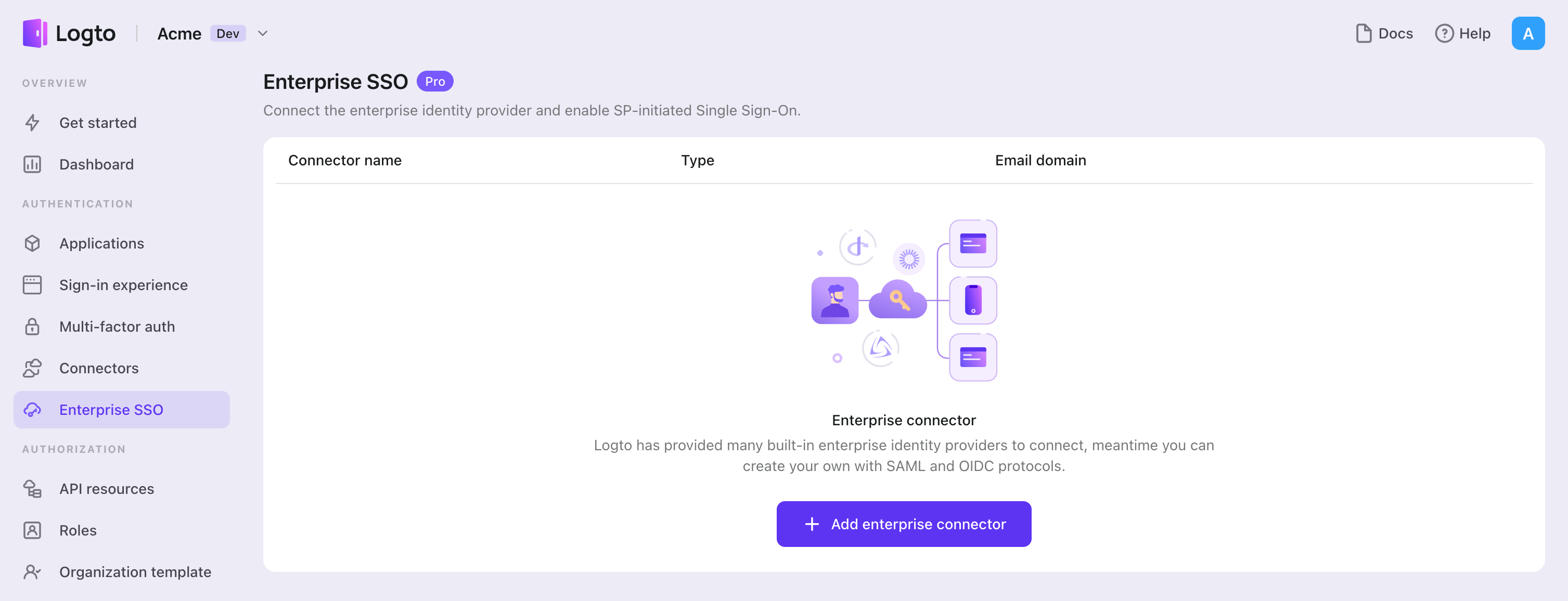
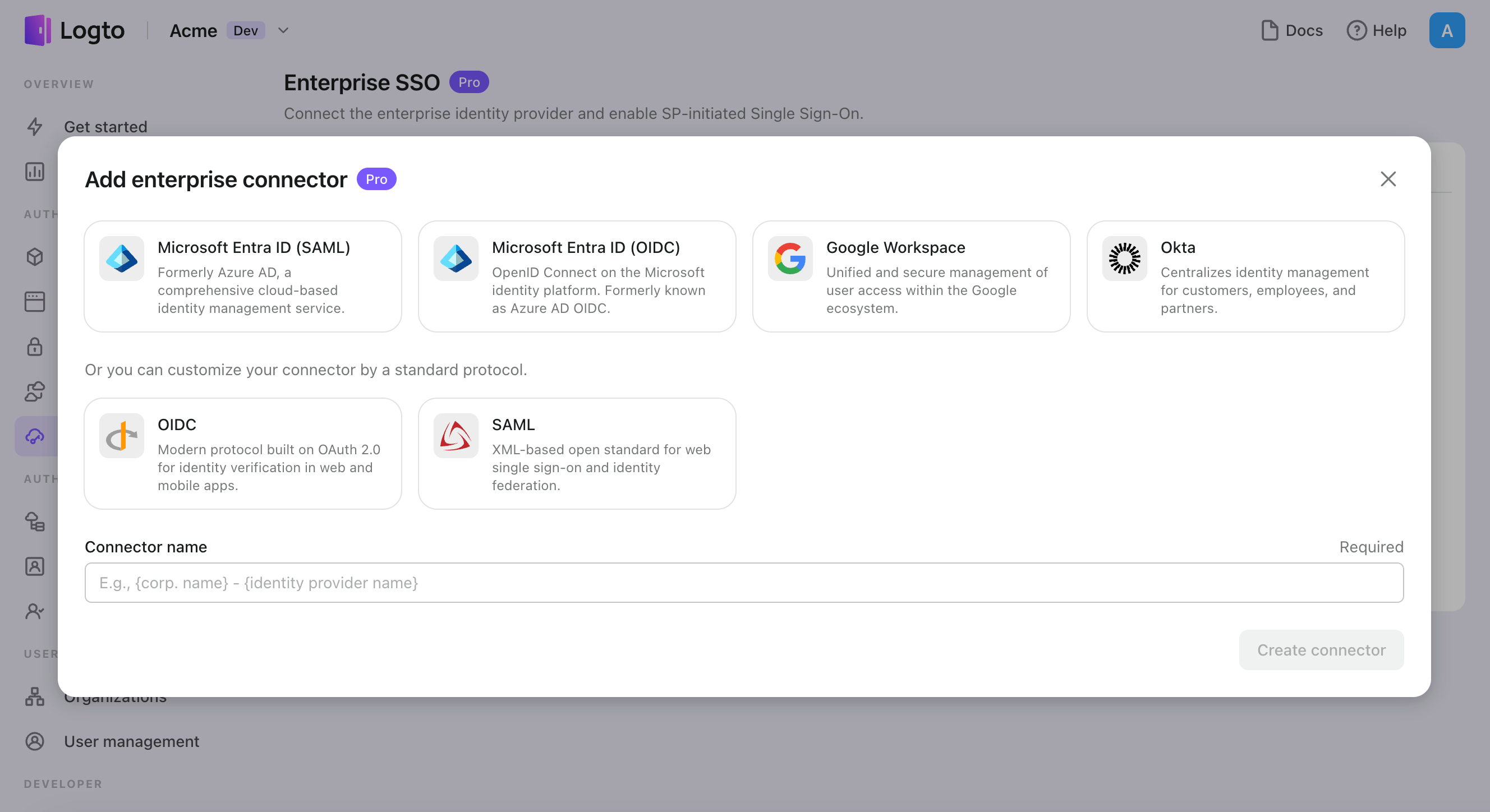
- คลิกปุ่ม "Add enterprise connector" และเลือกประเภทผู้ให้บริการ SSO ของคุณ เลือกจากตัวเชื่อมต่อสำเร็จรูปสำหรับ Microsoft Entra ID (Azure AD), Google Workspace, และ Okta หรือสร้างการเชื่อมต่อ SSO แบบกำหนดเองโดยใช้มาตรฐาน OpenID Connect (OIDC) หรือ SAML
- กำหนดชื่อที่ไม่ซ้ำกัน (เช่น SSO sign-in for Acme Company)
- ตั้งค่าการเชื่อมต่อกับ IdP ของคุณในแท็บ "Connection" ดูคู่มือด้านบนสำหรับแต่ละประเภทตัวเชื่อมต่อ
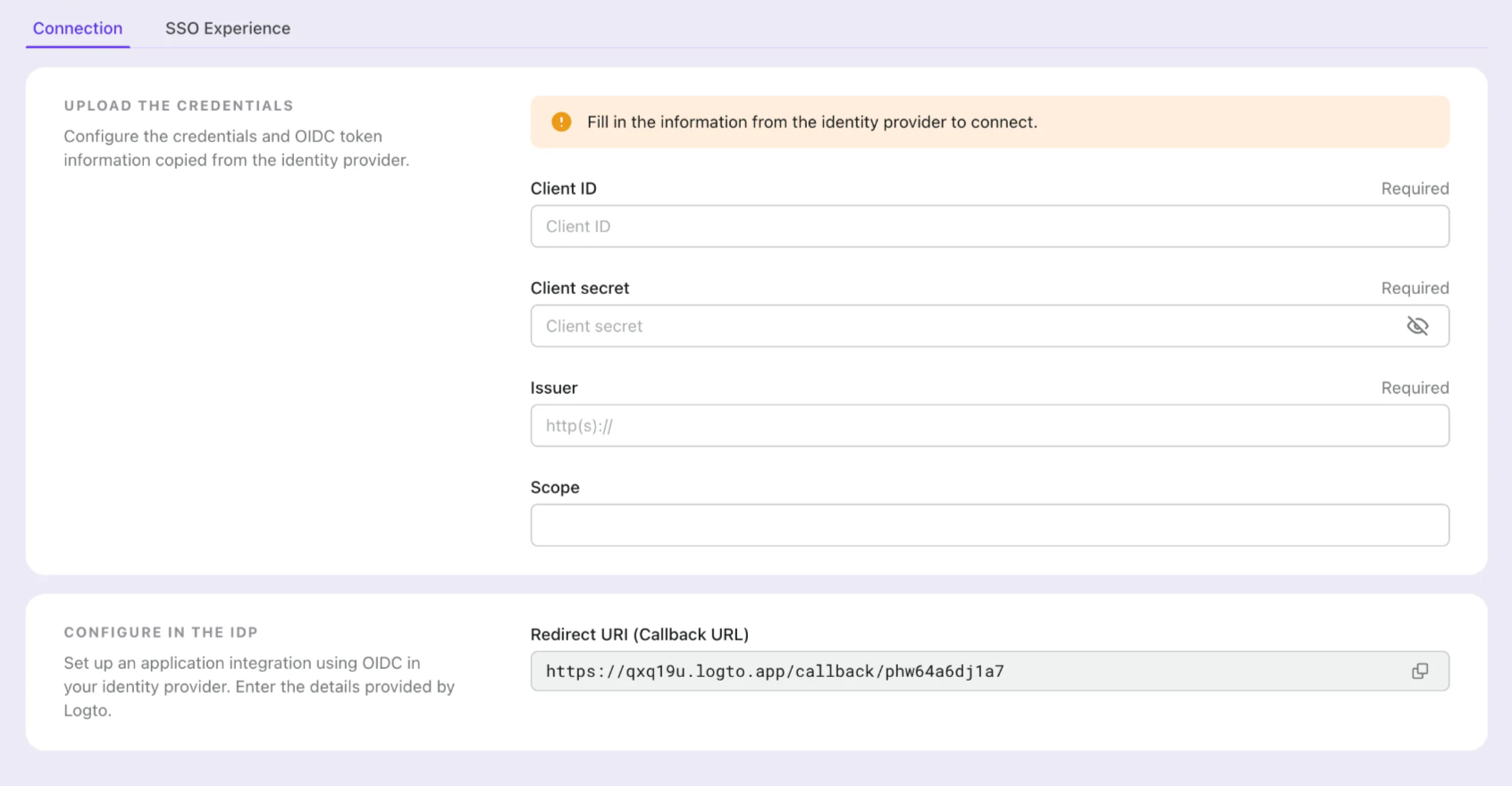
- ปรับแต่งประสบการณ์ SSO และ โดเมนอีเมล ขององค์กรในแท็บ "Experience" ผู้ใช้ที่ลงชื่อเข้าใช้ด้วยโดเมนอีเมลที่เปิดใช้ SSO จะถูกเปลี่ยนเส้นทางไปยังการยืนยันตัวตน SSO

- บันทึกการเปลี่ยนแปลง
ตั้งค่า Google Cloud Platform
ขั้นตอนที่ 1: สร้างโปรเจกต์ใหม่บน Google Cloud Platform
ก่อนที่คุณจะสามารถใช้ Google Workspace เป็นผู้ให้บริการการยืนยันตัวตน (authentication provider) ได้ คุณต้องตั้งค่าโปรเจกต์ใน Google API Console เพื่อขอรับข้อมูลประจำตัว OAuth 2.0 หากคุณมีโปรเจกต์อยู่แล้ว สามารถข้ามขั้นตอนนี้ได้ หากยังไม่มี ให้สร้างโปรเจกต์ใหม่ภายใต้องค์กร Google ของคุณ
ขั้นตอนที่ 2: กำหนดค่าหน้าขอความยินยอม (consent screen) สำหรับแอปพลิเคชันของคุณ
เพื่อสร้างข้อมูลรับรอง OIDC ใหม่ คุณต้องกำหนดค่าหน้าขอความยินยอม (Consent Screen) สำหรับแอปพลิเคชันของคุณ
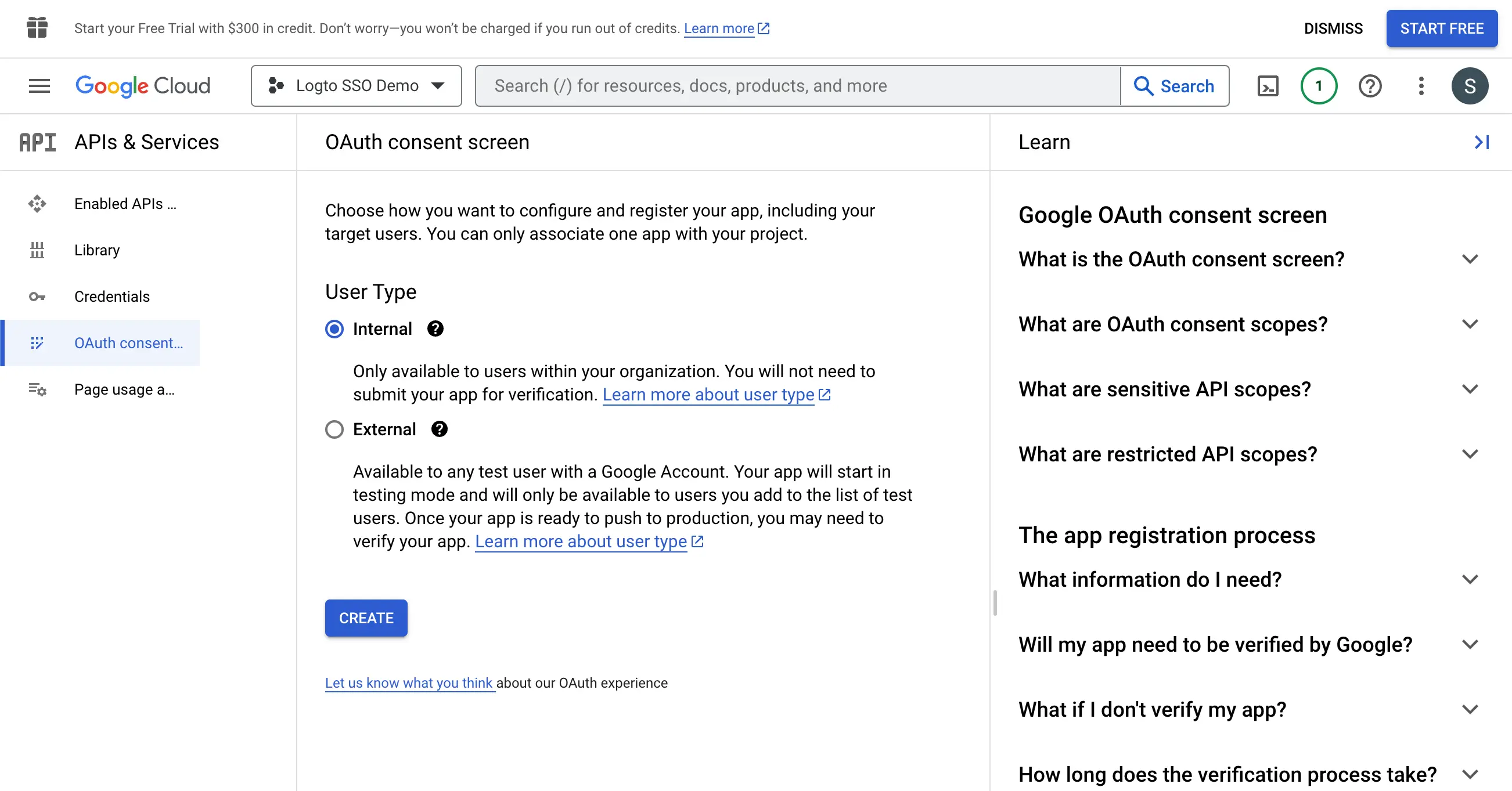
- ไปที่หน้า OAuth consent screen และเลือกประเภทผู้ใช้
Internalการตั้งค่านี้จะทำให้แอป OAuth สามารถใช้งานได้เฉพาะผู้ใช้ภายในองค์กรของคุณเท่านั้น
- กรอกการตั้งค่า
Consent Screenตามคำแนะนำบนหน้า คุณต้องระบุข้อมูลขั้นต่ำดังต่อไปนี้:
- ชื่อแอปพลิเคชัน (Application name): ชื่อของแอปพลิเคชันของคุณ ซึ่งจะแสดงบนหน้าขอความยินยอม
- อีเมลสำหรับติดต่อ (Support email): อีเมลสำหรับติดต่อของแอปพลิเคชัน ซึ่งจะแสดงบนหน้าขอความยินยอม

- กำหนด
ขอบเขต (Scopes)สำหรับแอปพลิเคชันของคุณ เพื่อดึงข้อมูลตัวตนและอีเมลของผู้ใช้อย่างถูกต้องจาก IdP ตัวเชื่อมต่อ SSO ของ Logto จำเป็นต้องขอขอบเขตต่อไปนี้จาก IdP:

- openid: ขอบเขตนี้จำเป็นสำหรับการยืนยันตัวตน OIDC ใช้สำหรับดึงโทเค็น ID (ID token) และเข้าถึง endpoint userInfo ของ IdP
- profile: ขอบเขตนี้จำเป็นสำหรับการเข้าถึงข้อมูลโปรไฟล์พื้นฐานของผู้ใช้
- email: ขอบเขตนี้จำเป็นสำหรับการเข้าถึงที่อยู่อีเมลของผู้ใช้
คลิกปุ่ม Save เพื่อบันทึกการตั้งค่าหน้าขอความยินยอม
ขั้นตอนที่ 3: สร้างข้อมูลประจำตัว OAuth ใหม่
ไปที่หน้า Credentials แล้วคลิกปุ่ม Create Credentials จากนั้นเลือกตัวเลือก OAuth client ID จากเมนูดรอปดาวน์เพื่อสร้าง OAuth credential ใหม่สำหรับแอปพลิเคชันของคุณ
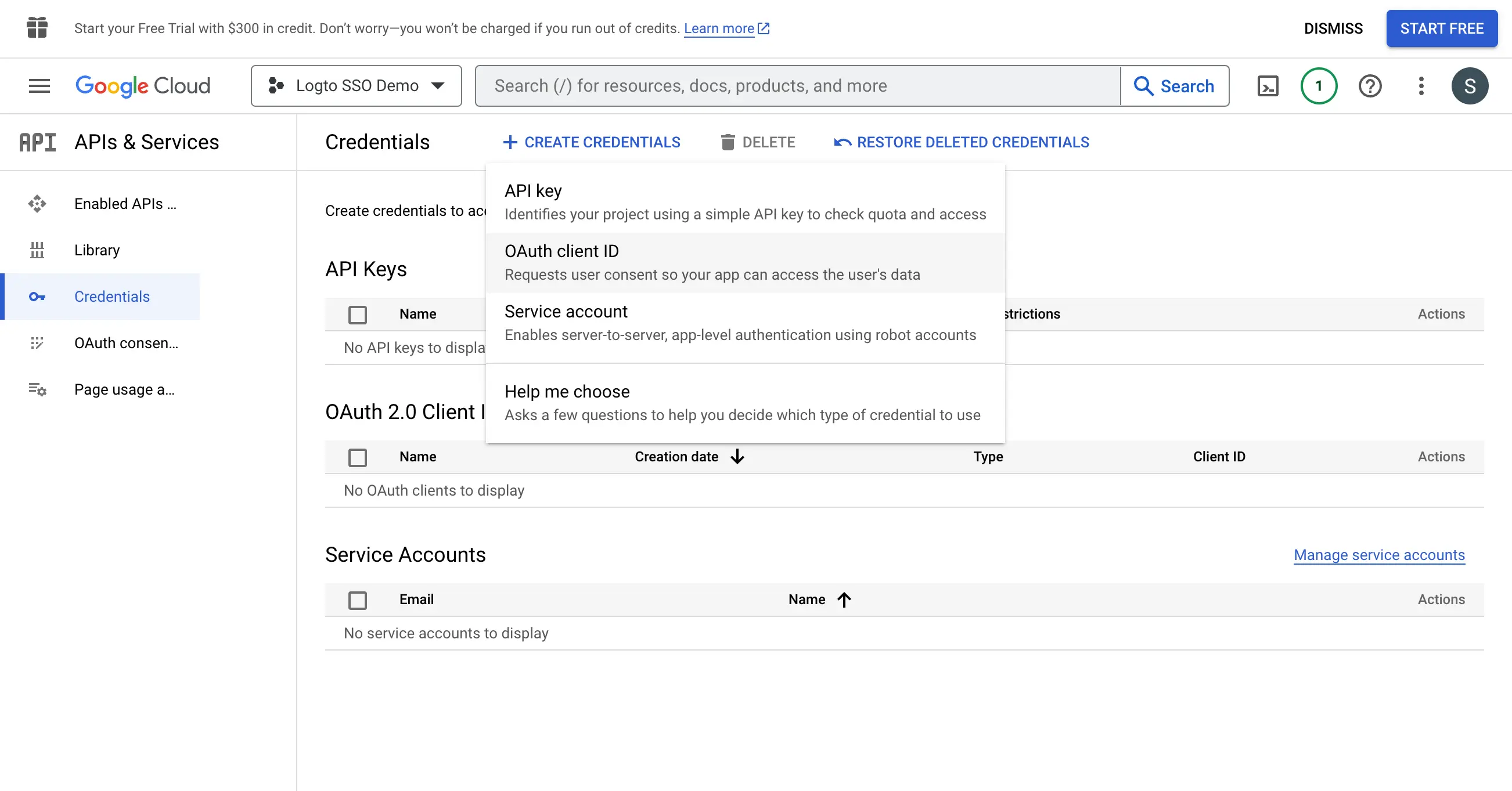
ดำเนินการตั้งค่า OAuth credential ต่อโดยกรอกข้อมูลดังต่อไปนี้:

- เลือก
Web applicationเป็นประเภทของแอปพลิเคชัน - กรอก
Nameของแอปพลิเคชันลูกข่ายของคุณ เช่นLogto SSO Connectorเพื่อช่วยให้คุณระบุ credential นี้ได้ในอนาคต - กรอก
Authorized redirect URIsด้วย Logto callback URI นี่คือ URI ที่ Google จะเปลี่ยนเส้นทางเบราว์เซอร์ของผู้ใช้หลังจากการยืนยันตัวตนสำเร็จ หลังจากผู้ใช้ยืนยันตัวตนกับ IdP สำเร็จ IdP จะเปลี่ยนเส้นทางเบราว์เซอร์ของผู้ใช้กลับมาที่ URI นี้พร้อมกับ authorization code Logto จะดำเนินการยืนยันตัวตนให้สมบูรณ์โดยอิงจาก authorization code ที่ได้รับจาก URI นี้ - กรอก
Authorized JavaScript originsด้วย origin ของ Logto callback URI เพื่อให้แน่ใจว่าเฉพาะแอป Logto ของคุณเท่านั้นที่สามารถส่งคำขอไปยัง Google OAuth server ได้ - คลิกปุ่ม
Createเพื่อสร้าง OAuth credential
ขั้นตอนที่ 4: ตั้งค่าตัวเชื่อมต่อ Logto ด้วยข้อมูลประจำตัวของไคลเอนต์
หลังจากสร้างข้อมูลประจำตัว OAuth สำเร็จแล้ว คุณจะได้รับหน้าต่างแจ้งเตือนที่แสดง client ID และ client secret
คัดลอก Client ID และ Client secret แล้วกรอกลงในช่องที่เกี่ยวข้องบนแท็บ Connection ของตัวเชื่อมต่อ SSO ของ Logto
ขณะนี้คุณได้ตั้งค่าตัวเชื่อมต่อ Google Workspace SSO บน Logto สำเร็จแล้ว
ขั้นตอนที่ 5: ขอบเขตเพิ่มเติม (Optional)
ขอบเขต (Scopes) กำหนดสิทธิ์ที่แอปของคุณร้องขอจากผู้ใช้ และควบคุมว่าแอปของคุณสามารถเข้าถึงข้อมูลใดจากบัญชี Google Workspace ของพวกเขาได้ การร้องขอสิทธิ์ของ Google จำเป็นต้องมีการตั้งค่าทั้งสองฝั่ง:
ใน Google Cloud Console:
- ไปที่ APIs & Services > OAuth consent screen > Scopes
- คลิก Add or Remove Scopes และเลือกเฉพาะขอบเขตที่แอปของคุณต้องการ:
- การยืนยันตัวตน (Authentication) (จำเป็น):
https://www.googleapis.com/auth/userinfo.emailhttps://www.googleapis.com/auth/userinfo.profileopenid
- การเข้าถึง API (ไม่บังคับ): เพิ่มขอบเขตเพิ่มเติมที่แอปของคุณต้องการ (เช่น Drive, Calendar, YouTube) ค้นหาบริการที่มีได้ใน Google API Library หากแอปของคุณต้องการเข้าถึง Google API เกินกว่าสิทธิ์พื้นฐาน ให้เปิดใช้งาน API เฉพาะที่แอปของคุณจะใช้ก่อน (เช่น Google Drive API, Gmail API, Calendar API) ใน Google API Library
- การยืนยันตัวตน (Authentication) (จำเป็น):
- คลิก Update เพื่อยืนยันการเลือก
- คลิก Save and Continue เพื่อบันทึกการเปลี่ยนแปลง
ในตัวเชื่อมต่อ Google Workspace ของ Logto:
- Logto จะเพิ่มขอบเขต
openid,profileและemailโดยอัตโนมัติเพื่อดึงข้อมูลเอกลักษณ์ผู้ใช้พื้นฐาน คุณสามารถเว้นว่างช่องScopesได้หากต้องการเพียงข้อมูลผู้ใช้พื้นฐาน - เพิ่มขอบเขตเพิ่มเติม (คั่นด้วยช่องว่าง) ในช่อง
Scopesเพื่อร้องขอข้อมูลเพิ่มเติมจาก Google โดยใช้ URL ขอบเขตแบบเต็ม ตัวอย่างเช่น:https://www.googleapis.com/auth/calendar.readonly
หากแอปของคุณร้องขอขอบเขตเหล่านี้เพื่อเข้าถึง Google API และดำเนินการต่าง ๆ โปรดเปิดใช้งาน Store tokens for persistent API access ในตัวเชื่อมต่อ Google ของ Logto ดูรายละเอียดในหัวข้อถัดไป
ขั้นตอนที่ 6: จัดเก็บโทเค็นเพื่อเข้าถึง Google APIs (Optional)
หากคุณต้องการเข้าถึง Google APIs และดำเนินการต่าง ๆ ด้วยการอนุญาตของผู้ใช้ Logto จำเป็นต้องขอขอบเขต API (scopes) ที่เฉพาะเจาะจงและจัดเก็บโทเค็น
- เพิ่มขอบเขตที่ต้องการในหน้าการตั้งค่าความยินยอม OAuth ของ Google Cloud Console และในตัวเชื่อมต่อ Google ของ Logto
- เปิดใช้งาน จัดเก็บโทเค็นเพื่อเข้าถึง API อย่างต่อเนื่อง ในตัวเชื่อมต่อ Google ของ Logto Logto จะจัดเก็บโทเค็นการเข้าถึง Google และโทเค็นรีเฟรช Google ไว้อย่างปลอดภัยใน Secret Vault
- เพื่อให้แน่ใจว่าจะได้รับโทเค็นรีเฟรช ให้ตั้งค่าตัวเชื่อมต่อ Google ของ Logto ให้เปิดใช้งาน Offline Access
คุณไม่จำเป็นต้องเพิ่ม offline_access ในช่อง Scope ของ Logto — การเพิ่มอาจทำให้เกิดข้อผิดพลาด Google จะใช้ access_type=offline โดยอัตโนมัติเมื่อเปิดใช้งาน offline access
ขั้นตอนที่ 7: กำหนดโดเมนอีเมลและเปิดใช้งานตัวเชื่อมต่อ SSO
ระบุ email domains ขององค์กรของคุณในแท็บ SSO experience ของตัวเชื่อมต่อ Logto การดำเนินการนี้จะเปิดใช้งานตัวเชื่อมต่อ SSO เป็นวิธีการยืนยันตัวตนสำหรับผู้ใช้เหล่านั้น
ผู้ใช้ที่มีอีเมลในโดเมนที่ระบุจะถูกเปลี่ยนเส้นทางให้ใช้ตัวเชื่อมต่อ SSO ของคุณเป็นวิธีการยืนยันตัวตนเพียงวิธีเดียว
สำหรับข้อมูลเพิ่มเติมเกี่ยวกับตัวเชื่อมต่อ Google Workspace SSO โปรดดูที่ Google OpenID Connector
บันทึกการตั้งค่าของคุณ
โปรดตรวจสอบให้แน่ใจว่าคุณได้กรอกค่าที่จำเป็นในพื้นที่การตั้งค่าตัวเชื่อมต่อ Logto เรียบร้อยแล้ว คลิก "บันทึกและเสร็จสิ้น" (หรือ "บันทึกการเปลี่ยนแปลง") และตัวเชื่อมต่อ Google Workspace enterprise SSO ควรพร้อมใช้งานแล้ว
เปิดใช้งานตัวเชื่อมต่อ Google Workspace enterprise SSO ในประสบการณ์การลงชื่อเข้าใช้
คุณไม่จำเป็นต้องตั้งค่าตัวเชื่อมต่อองค์กร (enterprise connectors) ทีละตัว Logto ช่วยให้การผสานรวม SSO เข้ากับแอปพลิเคชันของคุณง่ายขึ้นเพียงคลิกเดียว
- ไปที่: Console > ประสบการณ์การลงชื่อเข้าใช้ > การสมัครและลงชื่อเข้าใช้
- เปิดใช้งานสวิตช์ "SSO สำหรับองค์กร (Enterprise SSO)"
- บันทึกการเปลี่ยนแปลง
เมื่อเปิดใช้งานแล้ว จะมีปุ่ม "การลงชื่อเข้าใช้ครั้งเดียว (Single Sign-On)" ปรากฏในหน้าลงชื่อเข้าใช้ของคุณ ผู้ใช้ระดับองค์กรที่มีโดเมนอีเมลที่เปิดใช้งาน SSO สามารถเข้าถึงบริการของคุณผ่านผู้ให้บริการข้อมูลระบุตัวตน (IdPs) ขององค์กรตนเอง
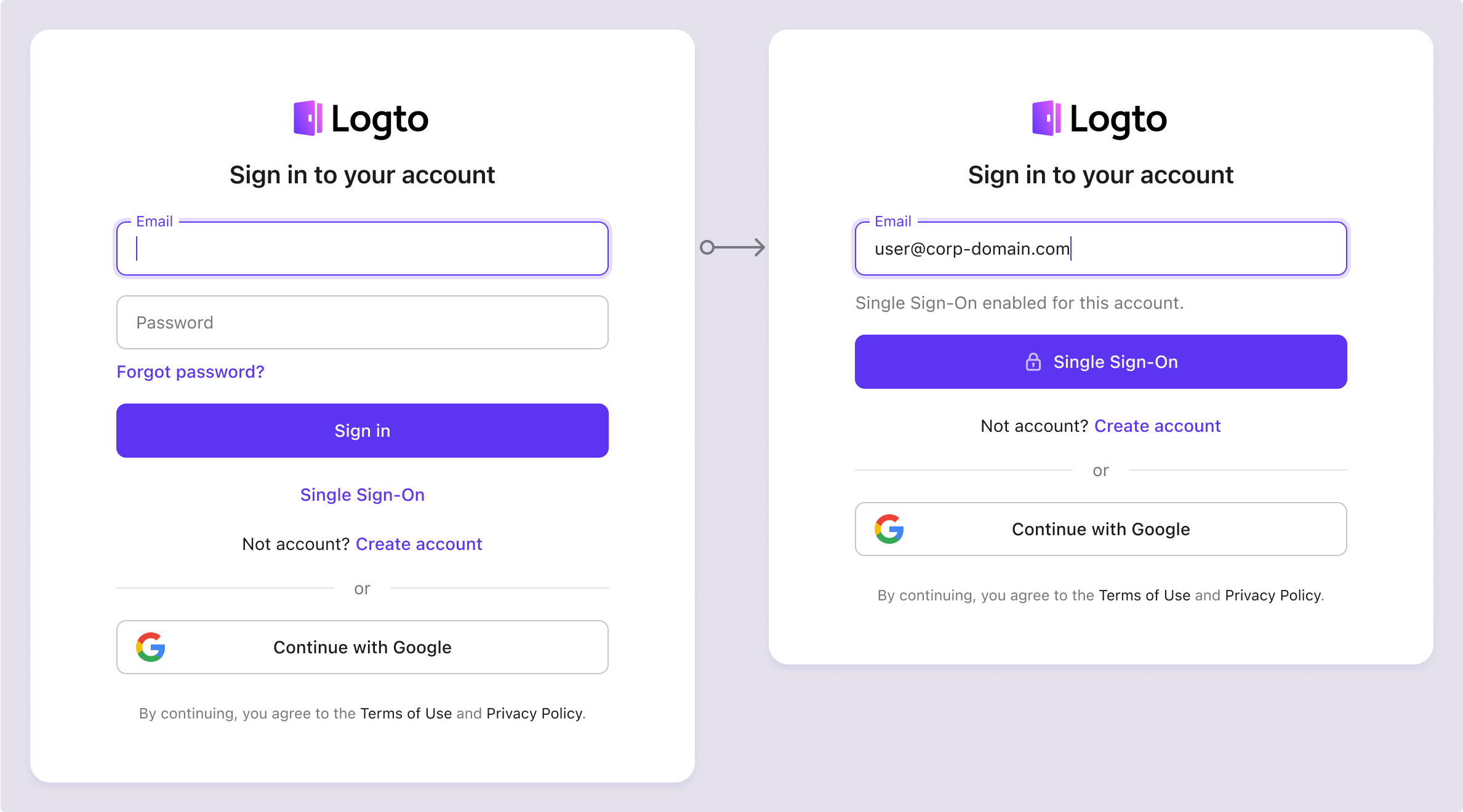
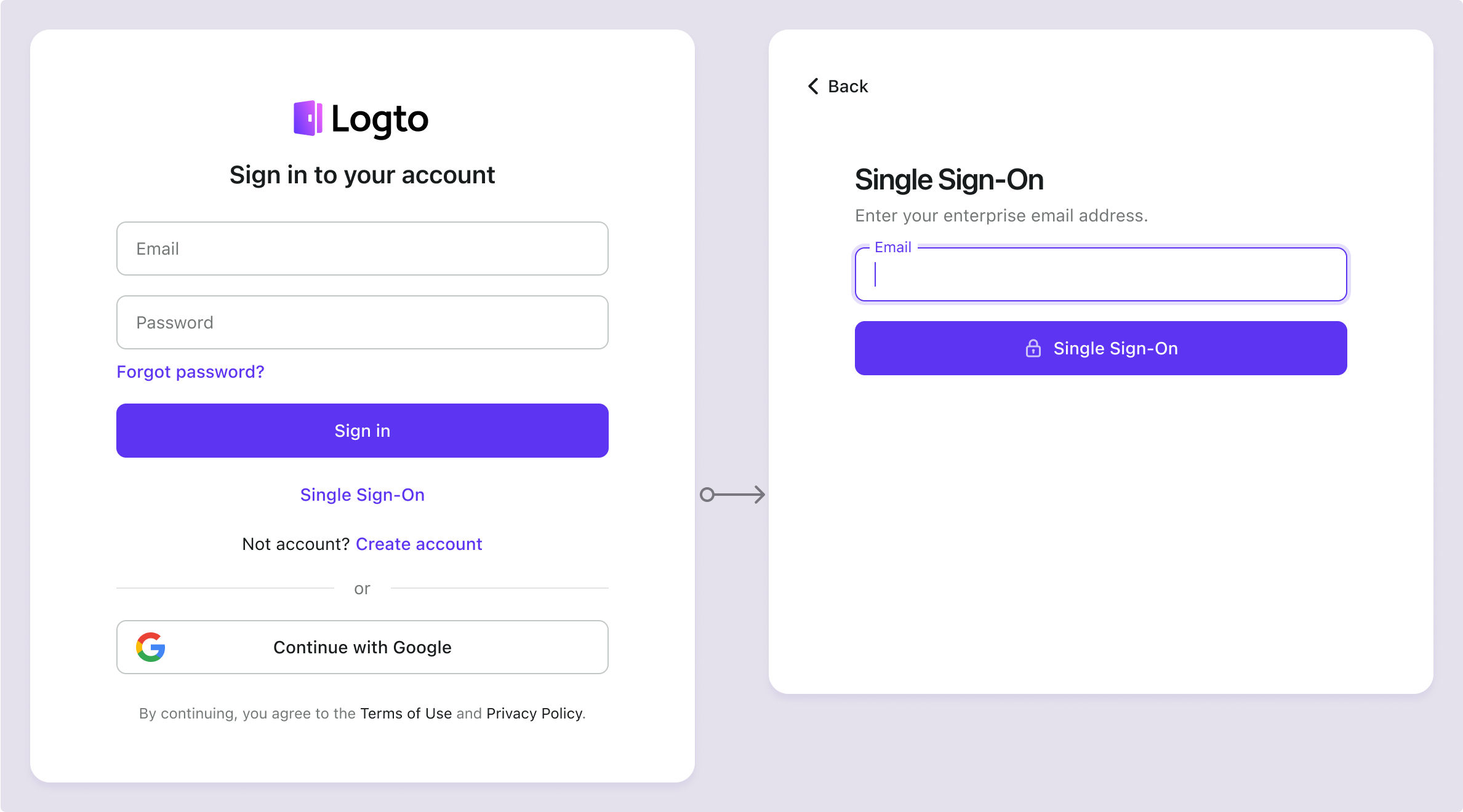
หากต้องการเรียนรู้เพิ่มเติมเกี่ยวกับประสบการณ์ผู้ใช้ SSO รวมถึง SSO ที่เริ่มต้นโดย SP และ SSO ที่เริ่มต้นโดย IdP โปรดดูที่ User flows: SSO สำหรับองค์กร (Enterprise SSO)
การทดสอบและการตรวจสอบความถูกต้อง
กลับไปที่แอป iOS (Swift) ของคุณ ตอนนี้คุณควรจะสามารถลงชื่อเข้าใช้ด้วย Google Workspace enterprise SSO ได้แล้ว ขอให้สนุก!
อ่านเพิ่มเติม
กระบวนการสำหรับผู้ใช้ปลายทาง: Logto มีโฟลว์การยืนยันตัวตนสำเร็จรูปพร้อมใช้งาน รวมถึง MFA และ Enterprise SSO พร้อม API อันทรงพลังสำหรับการปรับแต่งการตั้งค่าบัญชี การตรวจสอบความปลอดภัย และประสบการณ์แบบหลายผู้เช่า (multi-tenant) ได้อย่างยืดหยุ่น
การอนุญาต (Authorization): การอนุญาต (Authorization) กำหนดว่าผู้ใช้สามารถทำอะไรหรือเข้าถึงทรัพยากรใดได้บ้างหลังจากได้รับการยืนยันตัวตนแล้ว สำรวจวิธีปกป้อง API ของคุณสำหรับแอปเนทีฟและแอปหน้าเดียว (SPA) และการใช้งานการควบคุมการเข้าถึงตามบทบาท (RBAC)
องค์กร (Organizations): ฟีเจอร์องค์กรมีประสิทธิภาพอย่างยิ่งใน SaaS แบบหลายผู้เช่าและแอป B2B โดยช่วยให้สร้างผู้เช่า จัดการสมาชิก RBAC ระดับองค์กร และ Just-in-Time Provisioning ได้
ชุดบทความ Customer IAM: บทความต่อเนื่องเกี่ยวกับการจัดการข้อมูลระบุตัวตนและการเข้าถึงของลูกค้า (Customer IAM) ตั้งแต่ระดับพื้นฐาน 101 ไปจนถึงหัวข้อขั้นสูงและอื่น ๆ