Logto は、モダンなアプリや SaaS 製品向けに設計された Auth0 の代替です。 Cloud と オープンソース の両方のサービスを提供し、アイデンティティと管理 (IAM) システムを迅速に立ち上げるのに役立ちます。認証 (Authentication)、認可 (Authorization)、マルチテナント管理を すべて一つに まとめて楽しんでください。
Logto Cloud で無料の開発テナントから始めることをお勧めします。これにより、すべての機能を簡単に探索できます。
この記事では、iOS (Swift) と Logto を使用して、Apple サインイン体験(ユーザー認証 (Authentication))を迅速に構築する手順を説明します。
前提条件
- 稼働中の Logto インスタンス。紹介ページ をチェックして始めてください。
- iOS (Swift) の基本的な知識。
- 使用可能な Apple アカウント。
Logto でアプリケーションを作成する
Logto は OpenID Connect (OIDC) 認証 (Authentication) と OAuth 2.0 認可 (Authorization) に基づいています。これは、複数のアプリケーション間でのフェデレーテッドアイデンティティ管理をサポートし、一般的にシングルサインオン (SSO) と呼ばれます。
あなたの Native app アプリケーションを作成するには、次の手順に従ってください:
- Logto コンソール を開きます。「Get started」セクションで、「View all」リンクをクリックしてアプリケーションフレームワークのリストを開きます。あるいは、Logto Console > Applications に移動し、「Create application」ボタンをクリックします。
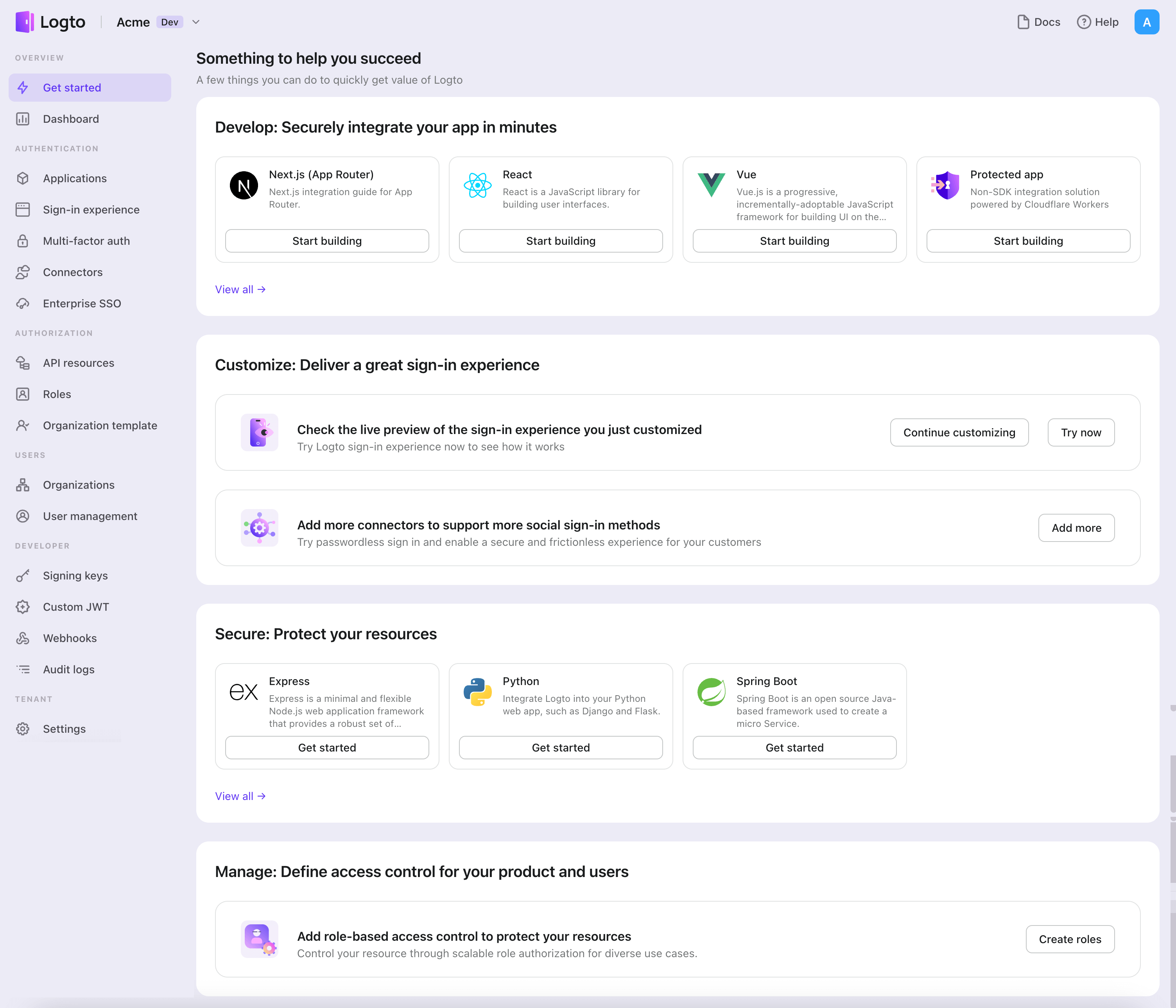
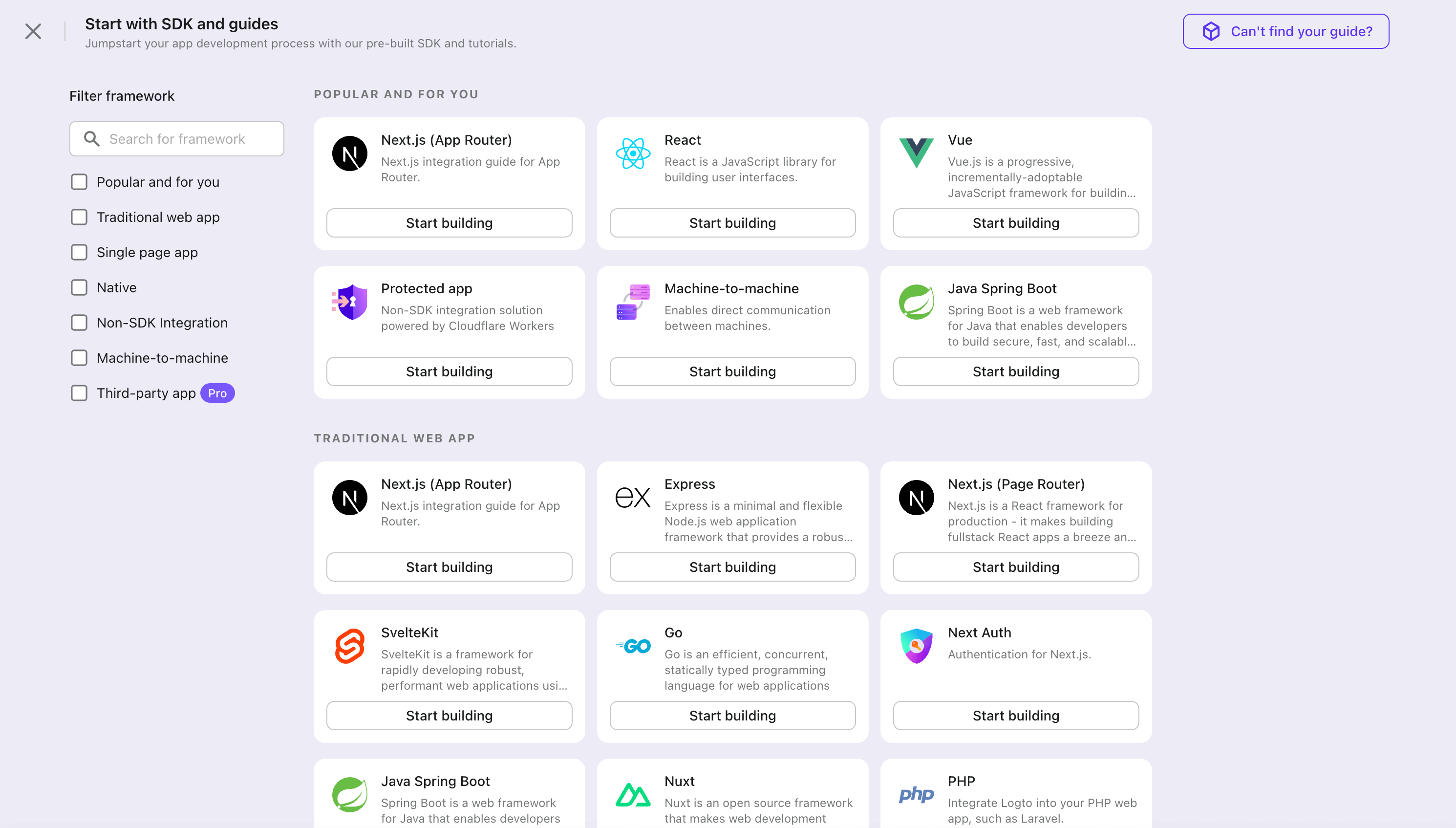
- 開いたモーダルで、左側のクイックフィルターチェックボックスを使用して、利用可能なすべての "Native app" フレームワークをフィルタリングするか、"Native app" セクションをクリックします。"iOS (Swift)" フレームワークカードをクリックして、アプリケーションの作成を開始します。
- アプリケーション名を入力します。例:「Bookstore」と入力し、「Create application」をクリックします。
🎉 タダーン!Logto で最初のアプリケーションを作成しました。詳細な統合ガイドを含むお祝いページが表示されます。ガイドに従って、アプリケーションでの体験を確認してください。
iOS (Swift) SDK を統合する
Logto SDK を依存関係として追加する
The minimum supported iOS version of Logto Swift SDK is iOS 13.
Logto Swift SDK comes in two major versions:
- v1: Opens the sign-in experience in an embedded WebView, which is required by the native social plugin targets, but does not support passkey sign-in (WebView does not support WebAuthn, the underlying standard of passkeys).
- v2 (beta): Opens the sign-in experience in
ASWebAuthenticationSession(the system browser), which unlocks passkey sign-in and shares the browser session. Note that v2 removes the native social plugin targets; social connectors still work through the browser. If you depend on the native WeChat or Alipay SDK handoff, stay on v1.
This guide covers both versions. Choose your version in the tabs below, and the choice will be kept in sync throughout this guide.
Use the following URL to add Logto SDK as a dependency in Swift Package Manager.
https://github.com/logto-io/swift.git
Since Xcode 11, you can directly import a Swift package w/o any additional tool.
When Xcode asks for the package version, choose the version you want to integrate:
- v2 (beta)
- v1
v2 is released as 2.0.0-beta.x prereleases until GA. Use 2.0.0-beta.1 or the latest 2.0.0-beta.x prerelease as the version. During beta, we recommend selecting the prerelease explicitly instead of relying on a normal version range to pick it automatically.
If you use Package.swift directly:
.package(url: "https://github.com/logto-io/swift.git", exact: "2.0.0-beta.1")
Use the latest v1 release as the stable line. The latest v1 version is 1.2.0.
If you use Package.swift directly:
.package(url: "https://github.com/logto-io/swift.git", from: "1.2.0")
We do not support Carthage and CocoaPods at the time due to some technical issues.
Carthage
Carthage needs a xcodeproj file to build. We will try to find a workaround later.
CocoaPods
CocoaPods does not support local dependency and monorepo, thus it's hard to create a .podspec for this repo.
LogtoClient を初期化する
LogtoConfig オブジェクトを使用して LogtoClient インスタンスを作成することで、クライアントを初期化します。
import Logto
import LogtoClient

let config = try? LogtoConfig(
  endpoint: "<your-logto-endpoint>", // 例: http://localhost:3001
  appId: "<your-app-id>"
)
let client = LogtoClient(useConfig: config)
デフォルトでは、ID トークンやリフレッシュ トークンのような資格情報を Keychain に保存します。したがって、ユーザーは戻ってきたときに再度サインインする必要はありません。
この動作をオフにするには、usingPersistStorage を false に設定します:
let config = try? LogtoConfig(
  // ...
  usingPersistStorage: false
)
サインイン
詳細に入る前に、エンドユーザー体験の概要を簡単にご紹介します。サインインプロセスは次のようにシンプルにまとめられます:
- アプリがサインインメソッドを呼び出します。
- ユーザーは Logto のサインインページにリダイレクトされます。ネイティブアプリの場合は、システムブラウザが開かれます。
- ユーザーがサインインし、アプリ(リダイレクト URI として設定)に戻されます。
リダイレクトベースのサインインについて
- この認証 (Authentication) プロセスは OpenID Connect (OIDC) プロトコルに従い、Logto はユーザーのサインインを保護するために厳格なセキュリティ対策を講じています。
- 複数のアプリがある場合、同じアイデンティティプロバイダー (Logto) を使用できます。ユーザーがあるアプリにサインインすると、Logto は別のアプリにアクセスした際に自動的にサインインプロセスを完了します。
リダイレクトベースのサインインの理論と利点について詳しく知るには、Logto サインイン体験の説明を参照してください。
Configure redirect URI
- v2 (beta)
- v1
Logto コンソールのアプリケーション詳細ページに切り替えましょう。リダイレクト URI io.logto.app://callback を追加し、「変更を保存」をクリックします。

In v2, the sign-in experience opens in ASWebAuthenticationSession (the system browser), and the redirect is routed back to your app through OS-level callback matching. For a custom scheme redirect URI such as io.logto.app://callback, register only the scheme part (io.logto.app) in your app's Info.plist, then add the full redirect URI to your Logto application's Redirect URIs.
In Xcode, open your app target, select Info, expand URL Types, and add one entry with io.logto.app in URL Schemes. If you edit Info.plist directly, add:
<key>CFBundleURLTypes</key>
<array>
  <dict>
    <key>CFBundleTypeRole</key>
    <string>Editor</string>
    <key>CFBundleURLName</key>
    <string>io.logto.app</string>
    <key>CFBundleURLSchemes</key>
    <array>
      <string>io.logto.app</string>
    </array>
  </dict>
</array>
For the browser flow in v2, you do not need to call LogtoClient.handle(url:); that plugin handoff API was removed with the embedded WebView flow.
Use Universal Links instead of a custom scheme?
You can also use an HTTPS redirect URI such as https://example.com/callback:
- Add the Associated Domains capability to your app.
- Configure
webcredentials:example.comsoASWebAuthenticationSessioncan match HTTPS callbacks on iOS 17.4 and newer. - If the same URL should also open your app as a Universal Link outside the authentication session, configure
applinks:example.comand host a validapple-app-site-associationfile for the domain and path. - Add the HTTPS URI to your Logto application's Redirect URIs.
- Pass the same URI to
signInWithBrowser.
On iOS 17.4 and newer, the SDK uses ASWebAuthenticationSession's HTTPS callback matching API so HTTPS redirects can automatically complete and dismiss the session. On older iOS versions, the authorization request can still use the HTTPS redirect URI, but the session may not close automatically unless your app handles the Universal Link callback itself. Keep a custom scheme redirect as a compatibility option if you need automatic completion on older iOS versions.
Logto コンソールのアプリケーション詳細ページに切り替えましょう。リダイレクト URI io.logto://callback を追加し、「変更を保存」をクリックします。
The Redirect URI in iOS SDK is only for internal use. There's NO NEED to add a Custom URL Scheme until a connector asks.
Sign-in and sign-out
.signInWithBrowser(redirectUri:) を呼び出す前に、Admin Console でリダイレクト URI
が正しく設定されていることを確認してください。 :::
- v2 (beta)
- v1
In v2, client.signOut(postLogoutRedirectUri:) performs a complete sign-out: it clears the local credentials, revokes the refresh token, and ends the Logto session by opening the end session endpoint in the system browser. The browser then navigates back to your app through the post sign-out redirect URI. Before using it, switch to the application details page of Logto Console, add the post sign-out redirect URI io.logto.app://signed-out and click "Save changes". The post sign-out redirect URI can use the same custom scheme you registered for sign-in.
For example, in a SwiftUI app:
struct ContentView: View {
  @State var isAuthenticated: Bool

  private let redirectUri = "io.logto.app://callback"
  private let postLogoutRedirectUri = "io.logto.app://signed-out"

  init() {
    isAuthenticated = client.isAuthenticated
  }

  var body: some View {
    VStack {
      if isAuthenticated {
        Button("Sign Out") {
          Task { [self] in
            let error = await client.signOut(postLogoutRedirectUri: postLogoutRedirectUri)
            if let error = error {
              print(error)
              return
            }
            isAuthenticated = false
          }
        }
      } else {
        Button("Sign In") {
          Task { [self] in
            do {
              try await client.signInWithBrowser(redirectUri: redirectUri)
              isAuthenticated = true
            } catch let error as LogtoClientErrors.SignIn {
              // error occurred during sign in
            } catch {
              // other errors
            }
          }
        }
      }
    }
  }
}
- You can also call
client.signOut()without a post sign-out redirect URI. No Console configuration is needed in this case: the browser shows the Logto sign-out page, and the user returns to the app by dismissing it manually. - If no UI context is available, you can call
client.clearCredentials()to clear the local credentials and revoke the refresh token. Note that this keeps the Logto session in the browser, so the nextsignInWithBrowsermay silently sign the user back in through that session.
You can use client.signInWithBrowser(redirectUri:) to sign in the user and client.signOut() to sign out the user.
For example, in a SwiftUI app:
struct ContentView: View {
  @State var isAuthenticated: Bool

  init() {
    isAuthenticated = client.isAuthenticated
  }

  var body: some View {
    VStack {
      if isAuthenticated {
        Button("Sign Out") {
          Task { [self] in
            await client.signOut()
            isAuthenticated = false
          }
        }
      } else {
        Button("Sign In") {
          Task { [self] in
            do {
              try await client.signInWithBrowser(redirectUri: "io.logto://callback")
              isAuthenticated = true
            } catch let error as LogtoClientErrors.SignIn {
              // error occurred during sign in
            } catch {
              // other errors
            }
          }
        }
      }
    }
  }
}
チェックポイント: アプリケーションをテストする
これで、アプリケーションをテストできます:
- アプリケーションを実行すると、サインインボタンが表示されます。
- サインインボタンをクリックすると、SDK がサインインプロセスを初期化し、Logto のサインインページにリダイレクトされます。
- サインインすると、アプリケーションに戻り、サインアウトボタンが表示されます。
- サインアウトボタンをクリックして、トークンストレージをクリアし、サインアウトします。
Apple コネクターを追加する
迅速なサインインを有効にし、ユーザーコンバージョンを向上させるために、アイデンティティプロバイダー (IdP) として iOS (Swift) を接続します。Logto ソーシャルコネクターは、いくつかのパラメーター入力を許可することで、この接続を数分で確立するのに役立ちます。
ソーシャルコネクターを追加するには、次の手順に従ってください:
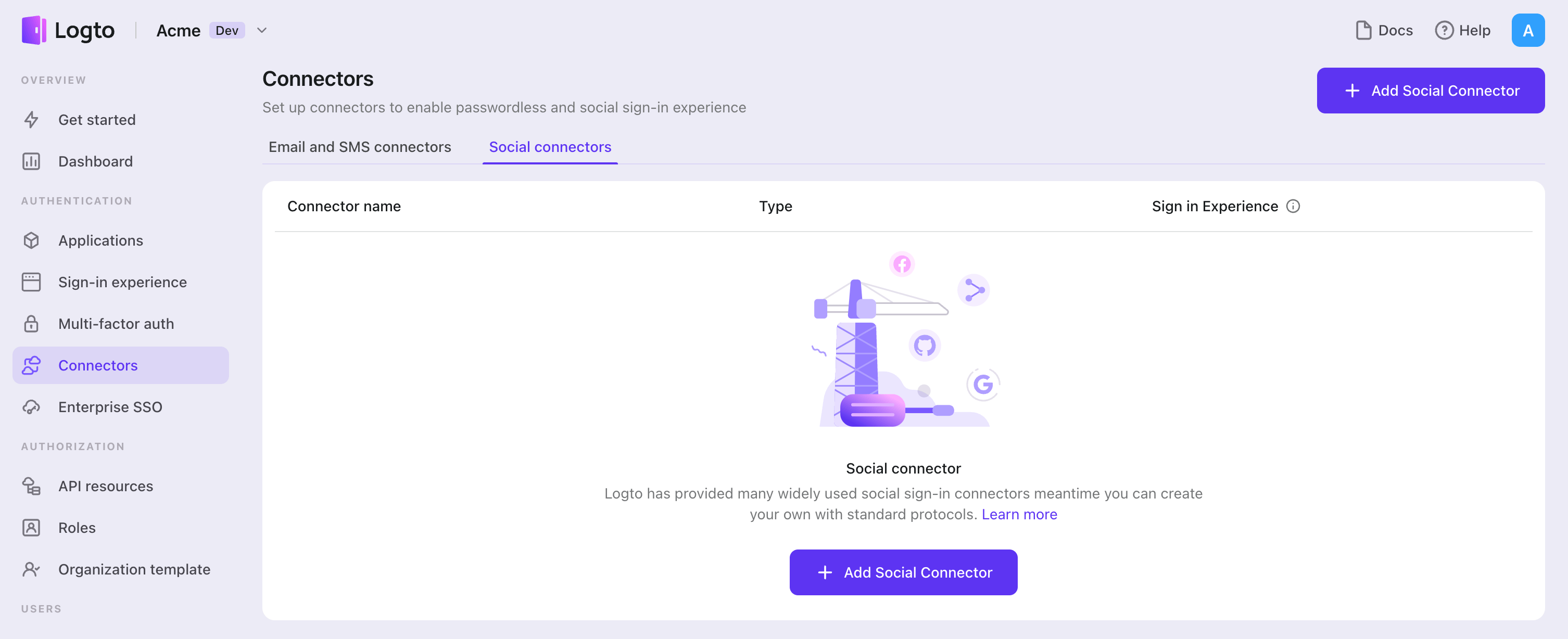
- Console > Connectors > Social Connectors に移動します。
- 「Add social connector」をクリックし、「Apple」を選択します。
- README ガイドに従い、必要なフィールドを完了し、設定をカスタマイズします。
インプレースコネクターガイドに従っている場合は、次のセクションをスキップできます。
Apple Sign-in を設定する
アプリに他のソーシャルサインイン方法がある場合、AppStore では Apple サインインが必要です。Android デバイスで Apple サインインを利用することは、Android アプリも提供している場合に便利です。
続行する前に Apple Developer Program に登録する必要があります。
アプリで Sign in with Apple を有効にする
Web アプリでのみ Sign in with Apple を実装したい場合でも、AppStore エコシステムを取り入れた既存のアプリ(つまり、有効な App ID を持っている)が必要です。
Xcode -> プロジェクト設定 -> Signing & Capabilities 経由で行うか、Certificates, Identifiers & Profiles を訪問してください。
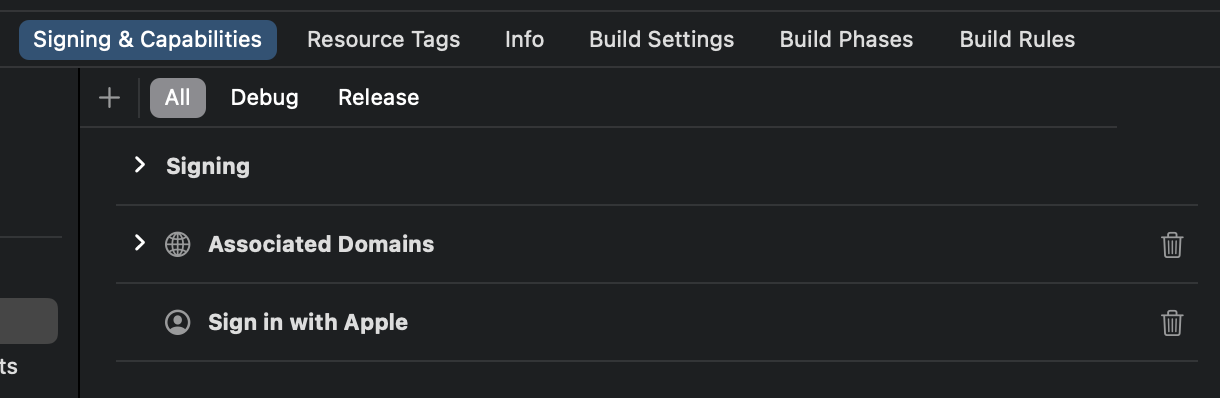
詳細については、Apple 公式ドキュメント の「Enable an App ID」セクションを参照してください。
識別子を作成する
- Certificates, Identifiers & Profiles を訪問し、「Identifier」の横にある「+」ボタンをクリックします。
- 「Register a new identifier」ページで「Services IDs」を選択し、「Continue」をクリックします。
- 「Description」と「Identifier」を入力します(例:
Logto Testとio.logto.test)、その後「Continue」をクリックします。 - 情報を再確認し、「Register」をクリックします。
識別子で Sign in with Apple を有効にする
作成した識別子をクリックします。詳細ページで「Sign in with Apple」をチェックし、「Configure」をクリックします。

開いたモーダルで、Sign in with Apple を有効にした App ID を選択します。
プロトコルとポートを除いた Logto インスタンスのドメインを入力します。例:your.logto.domain。次に「Return URL」(つまり、リダイレクト URI)を入力します。これは /callback/${connector_id} を含む Logto URL です。例:https://your.logto.domain/callback/apple-universal。Admin Console で Apple コネクターを作成した後にランダムに生成された connector_id を取得できます。
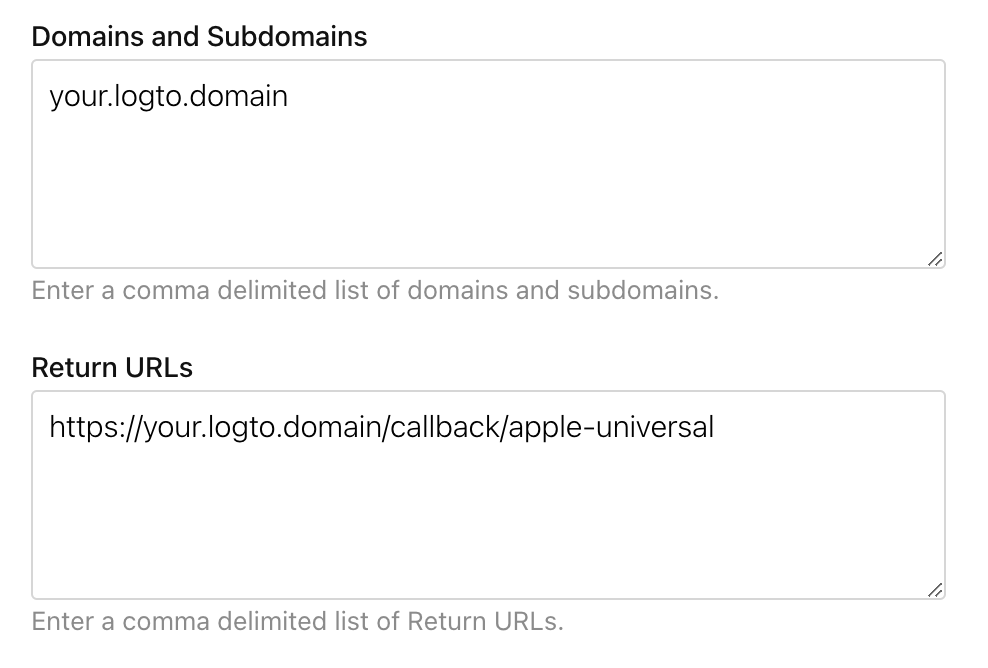
「Next」をクリックし、その後「Done」をクリックしてモーダルを閉じます。右上の「Continue」をクリックし、「Save」をクリックして設定を保存します。
Apple は HTTP プロトコルと localhost ドメインを持つ Return URL を許可していません。
ローカルでテストしたい場合は、/etc/hosts ファイルを編集して localhost をカスタムドメインにマッピングし、ローカル HTTPS 環境を設定する必要があります。mkcert はローカル HTTPS の設定を支援します。
スコープを設定する
Apple からユーザーのメールを取得するには、スコープに email を含める必要があります。メールと名前の両方を取得するには、スコープとして name email を使用できます。詳細については、Apple 公式ドキュメント を参照してください。
ユーザーはアプリからメールアドレスを隠すことを選択する場合があります。この場合、実際のメールアドレスを取得することはできません。代わりに random@privaterelay.appleid.com のようなメールアドレスが返されます。
設定を保存する
Logto コネクター設定エリアで必要な値をすべて記入したことを確認してください。「保存して完了」または「変更を保存」をクリックすると、Apple コネクターが利用可能になります。
サインイン体験で Apple コネクターを有効にする
ソーシャルコネクターを正常に作成したら、サインイン体験で「Apple で続行」ボタンとして有効にすることができます。
- Console > サインイン体験 > サインアップとサインイン に移動します。
- (オプション)ソーシャルログインのみが必要な場合は、サインアップ識別子に「該当なし」を選択します。
- 設定済みの Apple コネクターを「ソーシャルサインイン」セクションに追加します。
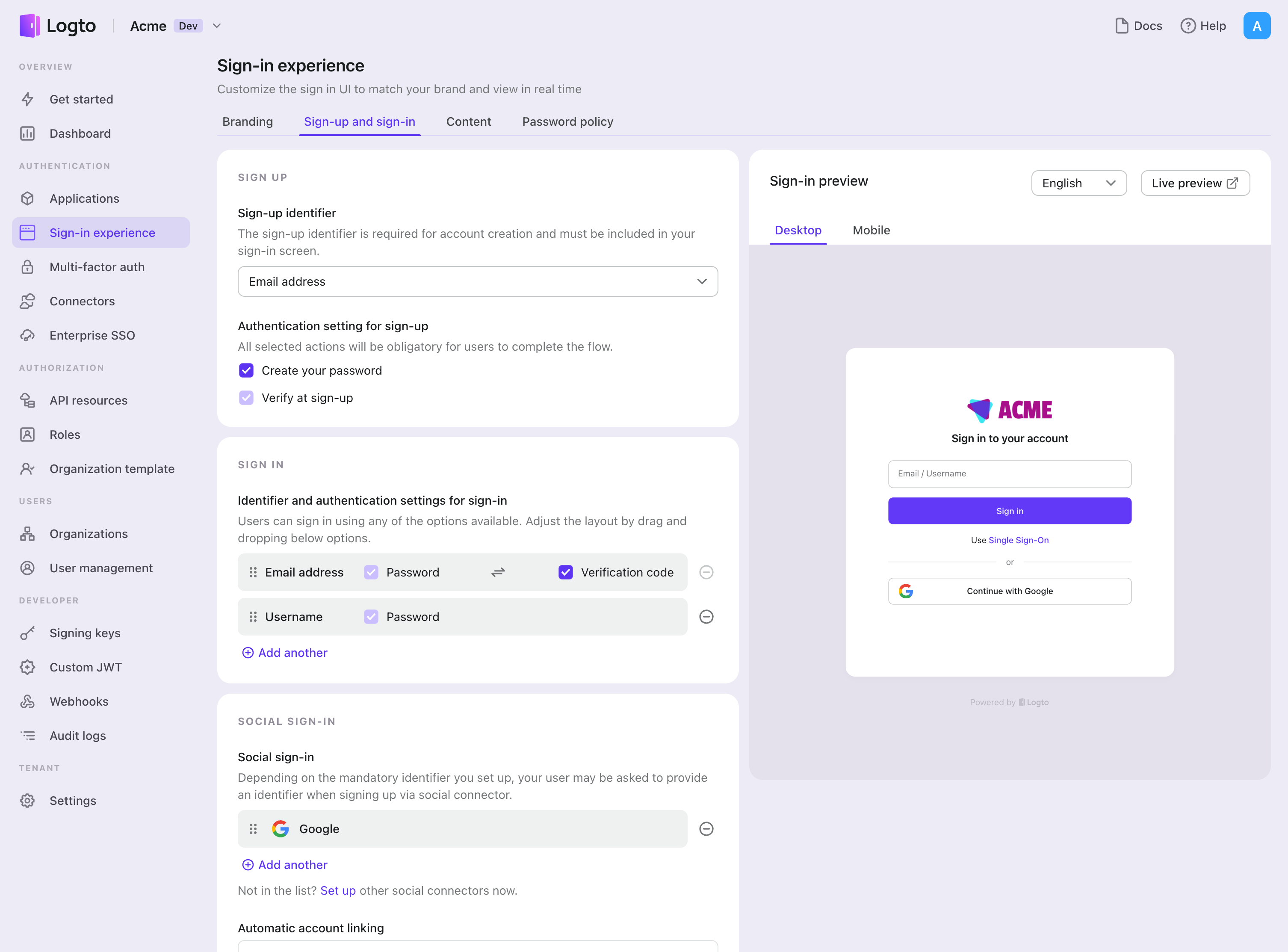
テストと検証
iOS (Swift) アプリに戻ります。これで Apple を使用してサインインできるはずです。お楽しみください!
さらなる読み物
エンドユーザーフロー:Logto は、MFA やエンタープライズシングルサインオン (SSO) を含む即時使用可能な認証 (Authentication) フローを提供し、アカウント設定、セキュリティ検証、マルチテナント体験の柔軟な実装のための強力な API を備えています。
認可 (Authorization):認可 (Authorization) は、ユーザーが認証 (Authentication) された後に行えるアクションやアクセスできるリソースを定義します。ネイティブおよびシングルページアプリケーションの API を保護し、ロールベースのアクセス制御 (RBAC) を実装する方法を探ります。
組織 (Organizations):特にマルチテナント SaaS や B2B アプリで効果的な組織機能は、テナントの作成、メンバー管理、組織レベルの RBAC、およびジャストインタイムプロビジョニングを可能にします。
顧客 IAM シリーズ:顧客(または消費者)アイデンティティとアクセス管理に関する連続ブログ投稿で、101 から高度なトピックまでを網羅しています。